One of the nice features of Windows 8 development is that WinRT, the Windows Runtime, permits apps to be developed in HTML5/CSS/JavaScript (the other two choices are .NET/XAML and C++/XAML). If you're involved in modern web development, the HTML5 approach may be attractive to you. There are however some differences between HTML5 web development and Windows 8 development you should be aware of.
1. No Need for Cross-Browser Support or Feature Availability Checking
In a standard modern web app, you've got to deal with the reality that users will use different browsers (and different versions of those browsers). This is usually handled with shims and polyfills (especially Modernizr) and specific checking for browser features with fallback behaviors.
In Windows 8 development, there's only one target browser: IE10. There are no other browsers to be concerned about. You can also freely take advantage of IE10-specific features, such as CSS Grid, that you might have been hesitant to use in the past because they weren't supported broadly enough.
2. External References are Disallowed
It's common in web apps to reference external stylesheets or scripts, especially to access open source JavaScript libraries via CDNs. In Windows 8 external references are disallowed as a security risk. This means your stylesheets and scripts must be local to the application.
3. Some DOM Operations are Disallowed
It's rather normal for modern web applications to manipulate the DOM, for example to set the innerHTML property of elements. But WinRT is picky about allowing this, and you just might get an error like this:
HTML1701: Unable to add dynamic content ' a' A script attempted to inject dynamic content, or elements previously modified dynamically, that might be unsafe. For example, using the innerHTML property to add script or malformed HTML will generate this exception. Use the toStaticHTML method to filter dynamic content, or explicitly create elements and attributes with a method such as createElement. For more information, see http://go.microsoft.com/fwlink/?LinkID=247104.
Don't fret, you can modify the DOM as long as you following Windows 8's rules, which are described here. This can in fact stop popular JavaScript libraries from working. To make jQuery work, you need this work-around.
4. There's no server - and no 'home domain'
In a standard web site, you have a server and your Ajax calls are pretty much restricted to that domain for security reasons. In Windows 8, there's no implicit server and therefore no implicit domain. You can freely perform Internet access using the WinJS.xhr method.
This doesn't mean you can't have a back-end, you certainly can (and Windows Azure is a particularly good choice for your back-end services).
5. A Windows 8 App is Not a Web Site
Although you can transplant a web site into a Windows 8 app without too much trouble, you need to be conscious of the differences between a Windows 8 app and a web site. A Windows 8 app has certain standards for styling, user interface, behaviors, security, etc. that must be conformed with in order to be accepted into the Windows Store. Windows 8 apps have special artifacts such as the App Bar and Live Tiles which you'll need to add.
Having said that, there is plenty from the web world you can apply to an HTML5 Windows 8 app. You can use many of your favorite libraries and frameworks, including Twitter Bootstrap for responsive web design that adapts layout to various form factors and orientations.
6. Windows 8 Apps Have a Specific Lifecycle
A Windows 8 app that holds state needs to be able to quickly save that state when being deactivated by the operating system, and likewise restore it when revived. You'll need to include JavaScript code in events such as onactivated to handle this.
7. Windows 8 Apps are Sandboxed and Require Use of the WinJS API
Windows 8 apps are sandboxed, meaning they can't do much on their own except when you go through the WinJS API. The WinJS API provides many methods which you'll have to use in order to perform communication, get user information, share with other applications, and access resources managed by the operating system such as file storage or contacts. Some things which you might be used to handling in other ways must use the WinJS API in Windows 8, period.
8. Touch Needs to be a First-Class Consideration
If your past web development hasn't focused on touch support, it will need to in Windows 8. This is more than a finger touch equaling a click event: Windows 8 users expect to be able to use swiping and other gestures. Not everything you do in HTML5 will automatically work with touch; for example, HTML5 Drag and Drop works with a mouse in Windows 8 but does not respond to touch. You'll want to ensure touch is well supported by your app and of course you don't want to forsake mouse and keyboard users either. Take advantage of the Windows 8 Simulator in Visual Studio 2012, which can simulate touch if you aren't developing on a touch-capable machine.
So what' s the bottom line on Windows 8 development in HTML5/JavaScript? It's certainly viable, and can allow you to transplant existing markup, CSS, and code--and use many of your favorite frameworks and libraries--but the aforementioned considerations will need to be dealt with. Ultimately, leveraging your web skills in Windows 8 development is useful but a Windows 8 app is not a web site and it's a mistake to forget that. A satisfying Windows 8 app--regardless of which language path you use to develop it--must conform to the conventions and spirit of the platform.

Showing posts with label WinRT. Show all posts
Showing posts with label WinRT. Show all posts
Wednesday, August 22, 2012

Wednesday, August 1, 2012
Adventures in Windows 8: Timer Metro App
As part of learning Windows 8 I am create Metro apps large and small almost daily, and I'll be sharing some of those here on this blog. Today I'll share Timer, a simple countdown-timer app you might use if you were giving a classroom presentation that had a hands-on exercise or a test where you need a "time remaining" clock.
Like many of the Metro apps I create, this one is in HTML5. The Windows runtime (WinRT) allows development in C++, .NET, or HTML5/JavaScript with equal treatment for each development path. The runtime API for JavaScript is called WinJS.
Tour of the App
Here's what Timer looks like when you run it. You enter the number of minutes and click the Start button.

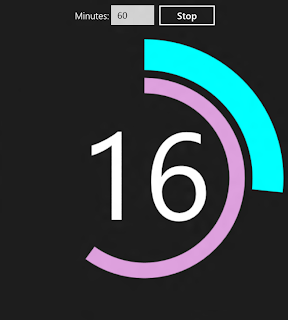
Once you click Start, you get a display that shows minutes remaining and counts down to 0.

Graphically, seconds remaining is shown by an inner circle and minutes remaining by an outer circle.
Once the timer reaches zero, the rings turn red and audible alarm plays - time's up!

That's about all there is to the app. You can also stop the timer early on with the Stop button and restart it.
The HTML
Here's the HTML markup for the app, which you can see is very short. The primary elements are start and stop buttons that reference JavaScript start() and stop() functions, and an HTML5 canvas where the graphical timer will be rendered. There's also an <audio> tag for the alarm sound.
And here's the JavaScript, also fairly small. The largest function is showTime(), which displays the timer on the canvas.
var canvas = document.getElementById("canvas");
var context = canvas.getContext("2d");
We use the arc function to draw the circles or partial circles for minutes and seconds, but we have to convert to the way the arc function thinks, shown below.

In JavaScript we can multiply the starting and ending minute points around the clock (0-59) times Math.PI to get the angles we need.
var x = canvas.width / 2;
var y = canvas.height / 2;
var radius = 200;
var startAngle = 0 * Math.PI;
var endAngle = ((minutes) / 30) * Math.PI;
var counterClockwise = false;
context.beginPath();
context.arc(x, y, radius, startAngle, endAngle, counterClockwise);
context.lineWidth = 50;
context.strokeStyle = "cyan";
context.stroke();
It was a little tricky thinking through the angle orientation, since a clock starts at the top of the circle but the arc function's orientation is 90 degrees to the right. This is solved with translation and rotation.
context.translate(x, y);
context.rotate(-Math.PI / 2);
context.translate(-x, -y);
There you have it - a simple, but functional Metro app that may come in handy the next time you're teaching a class.
Like many of the Metro apps I create, this one is in HTML5. The Windows runtime (WinRT) allows development in C++, .NET, or HTML5/JavaScript with equal treatment for each development path. The runtime API for JavaScript is called WinJS.
Tour of the App
Here's what Timer looks like when you run it. You enter the number of minutes and click the Start button.

Once you click Start, you get a display that shows minutes remaining and counts down to 0.

Graphically, seconds remaining is shown by an inner circle and minutes remaining by an outer circle.

Once the timer reaches zero, the rings turn red and audible alarm plays - time's up!

That's about all there is to the app. You can also stop the timer early on with the Stop button and restart it.
The HTML
Here's the HTML markup for the app, which you can see is very short. The primary elements are start and stop buttons that reference JavaScript start() and stop() functions, and an HTML5 canvas where the graphical timer will be rendered. There's also an <audio> tag for the alarm sound.
<!DOCTYPE html>
<html>
<head>
<meta charset="utf-8" />
<title>Timer</title>
<!-- WinJS references -->
<link href="//Microsoft.WinJS.1.0.RC/css/ui-dark.css" rel="stylesheet" />
<script src="//Microsoft.WinJS.1.0.RC/js/base.js"></script>
<script src="//Microsoft.WinJS.1.0.RC/js/ui.js"></script>
<!-- Timer references -->
<link href="/css/default.css" rel="stylesheet" />
<script src="/js/default.js"></script>
</head>
<body>
<div data-win-control="WinJS.UI.ViewBox">
<div class="fixedlayout">
<div class="center">
<div class="center">
<p>Minutes: <input type="text" id="minutes" size="4" value="60" />
<button id="startButton" onclick="start()">Start</button>
<button id="stopButton" onclick="stop()" style="display:none">Stop</button></p>
</div>
<canvas id="canvas" class="center" height="600" width="600"></canvas>
</div>
</div>
</div>
<audio id="alarm">
<source src="audio/timer.mp3" />
</audio>
</body>
</html>
The JavaScriptAnd here's the JavaScript, also fairly small. The largest function is showTime(), which displays the timer on the canvas.
var minutes = 60;
var seconds = 60;
var running = false;

function start() {
    minutes = parseInt(document.getElementById("minutes").value, 10);
    if (minutes > 0) {
        seconds = 60;
        showTime();
        running = true;
        document.getElementById("startButton").style.display = "none";
        document.getElementById("stopButton").style.display = "inline";
        setTimeout(update, 1000);
    }
}

function stop() {
    clearTimeout(update);
    running = false;
    document.getElementById("startButton").style.display = "inline";
    document.getElementById("stopButton").style.display = "none";
}

function update()
{
    if (!running) return;

    seconds--;
    if (seconds === 0) {
        if (minutes > 0) {
            minutes--;
            if (minutes > 0) {
                seconds = 60;
            }
        }
     }
    showTime(minutes);

    if (running) {

        if (minutes > 0 || seconds > 0) {
            setTimeout(update, 1000);
        }
        else {
            alarm = document.getElementById('alarm');
            alarm.play();
            running = false;
            document.getElementById("startButton").style.display = "inline";
            document.getElementById("stopButton").style.display = "none";
        }
    }
}

function showTime() {
    var canvas = document.getElementById("canvas");
    var context = canvas.getContext("2d");
    var x = canvas.width / 2;
    var y = canvas.height / 2;
    var radius = 200;

    var startAngle = 0 * Math.PI;
    var endAngle = ((minutes) / 30) * Math.PI;
    var counterClockwise = false;

    context.save();
    context.clearRect(0, 0, 600, 600);

    context.fillStyle = "#ffffff";
    context.font = "200px Segoe UI";
    context.textAlign = "center";
    context.textBaseline = "middle";
    context.fillText(minutes.toString(), x, y - 15);

    context.translate(x, y);
    context.rotate(-Math.PI / 2);
    context.translate(-x, -y);

    if (minutes > 0 || seconds > 0) {
        context.beginPath();
        context.arc(x, y, radius, startAngle, endAngle, counterClockwise);
        context.lineWidth = 50;
        context.strokeStyle = "cyan";
        context.stroke();
    }
    else {
        context.beginPath();
        context.arc(x, y, radius, 0 * Math.PI, 2 * Math.PI, counterClockwise);
        context.lineWidth = 50;
        context.strokeStyle = "red";
        context.stroke();
    }

    radius = 150;

    startAngle = 0 * Math.PI;
    endAngle = ((seconds) / 30) * Math.PI;

    if (minutes === 0 && seconds === 0) {
        context.beginPath();
        context.arc(x, y, radius, 0 * Math.PI, 2 * Math.PI, counterClockwise);
        context.lineWidth = 25;
        context.strokeStyle = "red";
        context.stroke();
    }
    else {
        context.beginPath();
        context.arc(x, y, radius, startAngle, endAngle, counterClockwise);
        context.lineWidth = 25;
        context.strokeStyle = "plum";
        context.stroke();
    }

    context.restore();
}


// For an introduction to the Fixed Layout template, see the following documentation:
// http://go.microsoft.com/fwlink/?LinkId=232508
(function () {
    "use strict";

    var app = WinJS.Application;
    var activation = Windows.ApplicationModel.Activation;
    WinJS.strictProcessing();

    app.onactivated = function (args) {
        if (args.detail.kind === activation.ActivationKind.launch) {
            if (args.detail.previousExecutionState !== activation.ApplicationExecutionState.terminated) {
                // TODO: This application has been newly launched. Initialize
                // your application here.
            } else {
                // TODO: This application has been reactivated from suspension.
                // Restore application state here.
            }
            args.setPromise(WinJS.UI.processAll());
        }
    };

    app.oncheckpoint = function (args) {
        // TODO: This application is about to be suspended. Save any state
        // that needs to persist across suspensions here. You might use the
        // WinJS.Application.sessionState object, which is automatically
        // saved and restored across suspension. If you need to complete an
        // asynchronous operation before your application is suspended, call
        // args.setPromise().
    };

    app.start();
})();
Let's walk through how the showTime() function displays the timer. We get the canvas element by id and then get a 2D drawing context from that. var canvas = document.getElementById("canvas");
var context = canvas.getContext("2d");
We use the arc function to draw the circles or partial circles for minutes and seconds, but we have to convert to the way the arc function thinks, shown below.

In JavaScript we can multiply the starting and ending minute points around the clock (0-59) times Math.PI to get the angles we need.
var x = canvas.width / 2;
var y = canvas.height / 2;
var radius = 200;
var startAngle = 0 * Math.PI;
var endAngle = ((minutes) / 30) * Math.PI;
var counterClockwise = false;
context.beginPath();
context.arc(x, y, radius, startAngle, endAngle, counterClockwise);
context.lineWidth = 50;
context.strokeStyle = "cyan";
context.stroke();
It was a little tricky thinking through the angle orientation, since a clock starts at the top of the circle but the arc function's orientation is 90 degrees to the right. This is solved with translation and rotation.
context.translate(x, y);
context.rotate(-Math.PI / 2);
context.translate(-x, -y);
There you have it - a simple, but functional Metro app that may come in handy the next time you're teaching a class.
Subscribe to:
Posts (Atom)