Showing posts with label Windows Azure. Show all posts

Friday, September 27, 2013

Getting Started with Mobility, Part 10: A Back-end in the Cloud with Windows Azure Mobile Services

In this series of posts, we're looking at how to get started as a mobile developer. In Parts 1-9, we examined a variety of mobile platforms and client app development approaches (native, hybrid, web). We've seen a lot so far, but that's only the front-end; typically, a mobile app also needs a back-end. We'll now start looking at various approaches to providing a back-end for your mobile app. Here in Part 10 we'll look at Microsoft's cloud-based Mobile Backend As A Service (MBAAS) offering, Windows Azure Mobile Services.


About Mobile Back-end as a Service (MBaaS) Offerings
To create a back-end for your mobile app(s), you're typically going to care about the following:
  • A service layer, where you can put server-side logic
  • Persistent data storage
  • Authentication
  • Push notifications
You could create a back-end for the above using many different platforms and technologies, and you could do so in a traditional data center or in a public cloud. You'd need to write a set of web services, create a database or data store of some kind, provide a security mechanism, and so on.

What's interesting is that today you can make a "build or buy" decision about your mobile back-end: several vendors and open source groups have decided to offer all of the above as a ready-to-use, out-of-box service. Microsoft's Windows Azure Mobile Services is an example of this. Of course, it doesn't do all of your work for you--you're still going to be responsible for supplying a data model and server-side logic. Nevertheless, MBaaS gives you a huge head start. MBaaS is especially valuable if you want to focus your time on your mobile app, not the supporting elements.


Windows Azure Mobile Services
Windows Azure Mobile Services "provides a scalable cloud backend for building Windows Store, Windows Phone, Apple iOS, Android, and HTML/JavaScript applications. Store data in the cloud, authenticate users, and send push notifications to your application within minutes." Specifically, that means you get the following:
  • Authentication (to Facebook, Twitter, Microsoft, or Google accounts)
  • Scripting for server-side logic
  • Push notifications
  • Logging
  • Data storage
  • Diagnostics
  • Scalability
The service will also generate for you starter mobile clients for iOS, Android, Windows Phone, Windows 8, or HTML5. You can use these apps as your starting point, or as references for seeing how to hook up your own apps to connect to the service.


Pricing
So what does all this back-end goodness cost? At the time of this writing, there are Free, Standard ($25/month), and Premium ($199/month) tiers of pricing. You can read the pricing details here.


Training
We reference training resources throughout this post. A good place to start, though, is here:

Get Started with Mobile Services
Android    iOS    Windows Phone    Windows 8    HTML5


Provisioning a Mobile Service
The first thing you'll notice about WAMS is the care that's been given to the developer experience, especially your first-time experience. Once you have a Windows Azure account, you'll go to azure.com, sign-in to the management portal, and navigate to the Mobile Services tab. From there, you're only a handful of clicks away from rapid provisioning of a mobile back-end.

1 Kick-off Provisioning
Click New > Mobile Service > Create to begin provisioning a mobile service.

Provisioning a Mobile Service

2 Define a Unique Name and Select a Database
On the first provisioning screen, you'll choose an endpoint name for your service, and either create a database or attach to one you're previously created in the cloud. The service offers a free 20MB SQL database. You'll also indicate which data center to allocate the service in (there are 8 worldwide, 4 in the U.S.)

Provisioning a Mobile Service - Screen 1


Provisioning a Mobile Service - Screen 2

3 Wait for Provisioning to Complete
Click the Checkmark button, and provisioning will commence. It's fast! In less than a minute your service will have been created.

Newly-provisioned Mobile Service Listed in Portal

4 Use the New Mobile Service Wizard
Click on your service to set it up. You'll be greeted with a wizard that walks you through. This is especially helpful if this is your first time using Windows Azure Mobile Services. On the first screen, you'll indicate which mobile platform you are targeting: Windows Store (Windows 8), Windows Phone 8, iOS, Android, or HTML5 (don't worry, you're not restricted to a single mobile platform and can come back and change this setting as often you wish).

Setup Wizard, Screen 1

5 Generate a Mobile App that Uses your Service
Next, you can download an automatically generated app for the platform you've selected, pre-wired up to talk to the service you just provisioned. To do so, click the Create a New App link. This will walk you through 1) installing the SDK you need for your mobile project, 2) creating a database table, and 3) downloading and running your app. The app and database will initially be for a ToDo database, but you can amend the database and app to your liking once you're done with the wizard.

Generating a Mobile Client App for Android
 
In the next section, we'll review how to build and run the app that you generated, and how to view what's happening on the back end.
 

Building and Running a Generated Mobile App
Let's walk through building and running the To Do app the portal auto-generates for you. The mobile client download is a zip file, which you should save locally, Unblock, and extract to a local folder. Next, you can open the project and run it--it's that simple to get started.

Running the App
When you run the app, you'll see a simple ToDo app--one that is live, and uses your back-end in the cloud for data storage. Run the app and kick the tires by adding some tasks. Enter a task by entering it's name and clicking Add. Delete an item by touching its checkbox.

To Do app running on Android phone

Viewing the Data
Now, back in the Windows Azure portal we can inspect the data that has been stored in the database in the cloud. Click on the Data link at the top of the Windows Azure portal for your mobile service, and you'll see what's in the ToDo table. It should match what you just entered using the mobile app.

Database Data in the Cloud


Dynamic Data
One of the great features of Windows Azure Mobile Services is its ability to dynamically adjust its data model. This allows you to change your mobile app's data structure in code, and the back-end database will automatically add new columns if it needs to--all by itself.

Get Started with Data in Mobile Services
Android    iOS    Windows Phone    Windows 8    HTML5


Dynamic data is a great feature, but some people won't want it enabled, perhaps once you're all ready for production use. You can enable or disable the feature in the Configure page of the portal.

Server-side Logic
Windows Azure Mobile Services happens to use node.js, which means server-side logic is something you write in JavaScript.

Mobile Services Server Script Reference

You can have scripts associated with your database table(s), where operations like Insert, Update, Delete, or Read execute script code. You set up these up on the Data page of the portal for your mobile service.

Database Action Scripts
 
Here's an example of a Read script that restricts processing to only return results owned by the current authenticated user:
 
function read(query, user, request) {    
    query.where({        
        owner: user.userId
     });    
    request.execute();
}
 

You can also set up scheduled scripts, which run on a schedule. On the Schedule page of the portal, click Create a Scheduled Job to define a scheduled job.

Creating a Scheduled Job

Once you've define a scheduled job, you can access it in the portal to enter script code and enable or disable the job.

Setting a Job's Script Code

Authentication
You can authenticate against Microsoft accounts, Facebook, Twitter, or Google. This involves registering your app for authentication and configuring Mobile Services; restricting database table permissions to authenticated users; and adding authentication to the app.

Get Started with Authentication
Android    iOS    Windows Phone    Windows 8    HTML5


Push Notifications
Push notifications support is provided for each mobile platform. Tutorials acquaint you with the registration and code steps needed to implement push notifications for  each platform,

Get Started with Push Notifications
Android    iOS    Windows Phone    Windows 8    HTML5


Summary
Windows Azure Mobile Services provides a fast and easy mobile back-end in the cloud. It offers the essential capabilities you need in a back end and supports the common mobile platforms. If you're comfortable expressing your server-side logic in node.js JavaScript, this is a compelling MBaaS to consider.

Saturday, February 23, 2013

Glass Half Empty: Understanding Cloud Computing SLAs

Let's talk about Cloud SLAs - a subject that is very important, but nevertheless is frequently  misunderstood,  over-simplified, or even outright ignored.


As I write this, Windows Azure has had an "up and down" week: on Tuesday 2/19/13, Windows Azure Storage was declared the leader in Cloud Storage by an independent report. A few days later on Friday 2/22/13, Windows Azure Storage suffered a worldwide outage - which shows you what a difference a couple of days can make to cloud vendor reputations. 

Given the events of this week, it seems timely to say some things about Cloud SLAs and correct some faulty reasoning that seems prevalent.

Service Level Agreements and High Availability
A service-level agreement is a contract between IT and a business to provide a certain level of service. In an enterprise an SLA could cover many things, including availability, response time, maintenance windows, and recovery time. In today's cloud computing environments, SLAs are largely about availability (uptime). So, let's talk about high availability.

Non-technical people say they want things up "all the time". Of course they do - but that's not reality. The chart below shows the "9s" categories for availability and what that means in terms of uptime.

Availability % Downtime/year Downtime/month
90% ("one 9") 36.5 days 72 hours
99% ("two 9's") 3.65 days 7.20 hours
99.9% ("three 9's") 8.76 hours 43.8 minutes
99.95% ("three and a half 9's") 4.38 hours 21.56 minutes
99.99% ("four 9's") 52.56 minutes 4.32 minutes
99.999% ("five 9's") 5.26 minutes 25.9 seconds

The key thing to understand is that as you increase the number of 9's the expense of meeting the SLA increases dramatically. Except for very simple systems or individual components, 4 9's is extremely expensive, and not available today in the public cloud. 5 9's or better is prohibitively expensive and quite rare.

Typical Availability Provided in the Cloud is 99.9% to 99.95%
Cloud platforms have individual SLAs for each service. The majority of cloud services have an SLA of 3 9's (99.9%), and some computing services offer 3.5 9's (99.95%). That means, a cloud service could be down 43 minutes a month and still be within its SLA. Is that an acceptable level of service? It depends. It could be a step up for you or a step down for you depending on what SLA you're used to - what does your local enterprise deliver? Interestingly, when I ask this question of clients the answer I receive most often is, "We don't know what our current SLA is"!

Availability Interruptions Don't Play Nice
The table above might lead you to believe that outage time is somehow evenly distributed but there's no guarantee of when an outage will occur or that outages will politely schedule themselves in small pockets of time over the course of the year. A service with a 99.9% SLA could be down 10 minutes a week, but it could also be down 43 minutes a month or even 8 hours straight once a year. You should assume the worst: an outage will occur during business hours on the day you can least afford it. Most cloud SLAs measure the SLA at a monthly level and provide some recompense if it is not met.

SLAs are not guarantees. Every cloud provider has missed meeting its SLA at times.

The Subtlety of SLAs by Service: Your Cloud Service SLA is not your Solution's SLA
Nearly all solutions in the cloud use multiple cloud services (for example, a web site might use Compute, Storage, and Database services). Note that the cloud providers do not provide an SLA for your solution, only for the individual services you consume.

An easy trap to fall into is assuming the minimum SLA for the cloud services you are using translates into an overall SLA for your solution. Let's demonstrate the fallacy of that thinking. Let's say your solution makes use of three cloud services, each with a monthly SLA of 99.9%. On the first day of the month, the first cloud service has a 40-minute outage but is otherwise up the remainder of the month - its still within its SLA. Now let's say the exact thing happens on the second day of the month to the second cloud service. And then, the same thing happens on the third day with your third cloud service. None of those services has violated its SLA, but your solution has been down 120 minutes that month.

The more services you use, the less uptime you can count on. Unless you're feeling lucky.


Using Multiple Data Centers Does Not Magically Increase 9's
I'm often asked if a 4 9's arrangement can be had by leveraging multiple data centers for failover. The answer is NO: while using multiple data centers and having good failover mechanisms in place does increase your likelihood of uptime, it is not a guarantee. Let's consider the best case and worst case scenario where you are using a primary cloud data center and have a failover mechanism in place for a secondary data center that is ready to take over at a moment's  notice. In the best case scenario, you experience no downtime at all in the primary data center, never need that second data center, and life is good. It could go that way. In the worst case scenario, you experience downtime in your primary data center and failover to the second data center -- but then that second data center fails too soon thereafter. If you don't think that could happen, consider that some of the cloud outages have been worldwide ones where all data centers are unavailable simultaneously.

Leveraging multiple data centers is a good idea - but don't represent that as adding more 9's to your availabiility. It's not a supportable claim.

How to Approach Cloud SLAs: Pessimistically
The only sane way to approach cloud computing SLAs (or any SLA for that matter) is to be extremely pessimistic and assume the worst possible case. If you can design mitigations and contingency plans for the worst case, you are well-prepared for any eventuality. If on the other hand you are "hoping for the best", your plans are extremely shaky. Murphy's Law should dominate your thinking when it comes to designing for failure.

Do not forget that Cloud SLAs are not a promise, they are a target. There may be some consequences such as refunds if your cloud vendor fails to meet their SLA, but that is usually little consolation for the costs of your business being down.


Cloud SLA Planning Best Practices
1. Become fully familiar with the SLA details of each cloud service you consume.
2. Keep in mind many cloud services are in preview/beta and may not be backed by any SLA.
3. Don't think of an SLA as a guarantee; your cloud provider will not always meet their SLA.
4. Do not confuse the availability SLA for individual cloud services with the overall uptime for your solution. There is no SLA for your solution, and the more services you use, the less uptime you are likely to have.
5. Do not plan on being lucky.
6. Build in contingency planning for a data center failure that allows you to fail-over to another data center. Yes, this will be extra work and increase your costs. Yes, it is worth it.
7. Remember that worldwide outages can occur, and you need a contingency plan for that scenario as well.

To Cloud, or Not to Cloud?
Does all of this mean the cloud is a bad place to run your applications? Not at all - it could well be an improvement over what your local experience is. And, there are significant benefits to running in the cloud that may more than offset the inconvenience of occasional downtime. The important thing is that you approach the cloud eyes-open and with realistic expectations.

Sunday, November 4, 2012

Microsoft, the Coolest Tech Company on the Planet

BUILD 2012 Delivers all of BUILD 2011's Promises, and More

A year ago, at BUILD 2011, Microsoft shared a bold vision for the future--and they needed to, because the world was changing fast. As I attended last year's conference, my mind abounded with questions--and Microsoft had answers for all of them. Good answers. Let's review what was shared then, and then we'll see where we actually are today.


The Vision and the Promises of BUILD 2011

• How would Microsoft survive what was being called by some the "Post-PC era"?
 With a cross-over operating system that would work on traditional PCs as well as touch tablets, and on ARM devices as well as x86 devices.

• What would Windows 8 look like? What languages would be used to program it?

Windows 8 has a compelling UI and design language, a big brother to what was originally called "Metro" on Windows 7. Along with that is a new Windows Runtime (WinRT), which can be programmed via HTML5/JavaScript, C#/XAML, or C++/XAML.


• How would Windows Phone make inroads in market share?

Microsoft wasn't saying a whole lot about Windows Phone 8 at the time. The hope of attendees of course is that the pantheon of large-to-small screens and devices for Windows 8 would also include the Windows 8 Phone family in some way at some point in time.

• When and how would Microsoft became a player in the ARM tablet world?

Windows 8 will work on both x86 and ARM devices. So along with upcoming hardware, you'll be able to have that iPad-like ARM tablet experience with long battery life on Windows 8.

• Would we be seeing original design or copied designs?

Original! What we now have to call Modern UI (the Metro name can no longer be used) is a cutting edge design and it's original. It also gives a fair degree of consistency of user experience between Windows 8 and Windows Phones.

• Where was Microsoft going with Windows Azure and their public cloud offerings?

Microsoft said they were working on all kinds of great things for Windows Azure, but we'd have to wait for some announcements.

• When would there be a credible Microsoft private cloud story?

Yes! What was code-named Windows Server 8 is built for public cloud. It allows many servers (even thousands) to be clustered, and they can be managed from a single console. Compute, network, and storage resources can be pooled, then carved out in virtual sections. Multi-tenancy is a core concept of the OS. System Center provides management.

• Was Microsoft really embracing HTML5, and how well would they support it?

Microsoft had already been demonstrating increasingly good support for the HTML5 client-side web stack, which also includes CSS, JavaScript, and common frameworks. Visual Studio 2012 and Blend would support them even more strongly, along with ASP.NET MVC4. Great work was also coming with TFS, and Microsoft was working on a cloud-based edition of TFS.

• Was there going to be any kind of strategy to unify all of this great stuff into a composed whole?

Yes! Microsoft calls this the era of "Connected Devices, Continuous Services" and it's a great way to think about how all the pieces fit together. You can see the mobile device and HTML5 web movements as part of a front-end revolution--which needs to be supported by a back-end revolution: a change in how we do IT, whether on-premises or in the cloud.

You had to be excited if you tuned into to BUILD 2011. Microsoft had the right answers and the right vision. Attendees even received an early preview copy of Windows 8 on a tablet PC so they could start learning how to develop Windows 8 apps.


A Year Has Passed... Did Microsoft Deliver?

You bet Microsoft delivered. If you attended or watched BUILD 2012 online you should have no doubt of that whatsoever. In case you missed it, I strongly recommend watching the following at http://buildwindows.com before reading further:

Day 1 Keynote by Steve Ballmer, Steve Guggenheimer, Kevin Gallo
Day 2 Keynote by Satya Nadella, Scott Guthrie, Scott Hanselman, Dave Campbell, Jason Zander, Josh Twist
Day 3 Web Talk by Scott Hanselman

Here's how the vision and promises of BUILD 2011 have become a reality. Microsoft not only delivered on their promises, they gave us even more.

Windows 8, The Cross-Over Operating System

Windows 8 has been available in some form for the last year in a variety of preview releases, but it was released for General Availability on October 26. So it's real, it's here, you can have it now.

Here's what my Windows 8 start screens look like on my x86 Dell laptop:

Windows 8 Pro Running on Dell Laptop

Because my laptop is an x86 device, I also get a classic desktop allowing me to run traditional apps:

 Windows 8 Pro Running on Dell Laptop - Classic Desktop


Innovative Hardware to Match the Innovative Operating System

We knew, as in the past, hardware manufacturers would work with Microsoft to create PCs and devices to work well with Windows 8. We learned a few months back that Microsoft themselves would be issuing their own tablets called Microsoft Surface, available in both ARM and x86 editions. This device is really cool: the cover not only does what you expect but is also a keyboard. It has a kickstand. Even Oprah Winfrey likes it, saying it "feels like a Mercedes-Benz to me, people".

Here's what my Windows 8 start screen looks like on my Microsoft Surface ARM tablet. Here, like on the iPad, I'm working solely with Touch. The edition of Windows 8 for ARM devices like this, Windows RT, doesn't include the classic desktop mode. However, it does come with a touch edition of Office 2013.

Windows RT Running on Microsoft Surface Tablet

 Modern UI

The "Design-Language-Formerly-Known-As-Metro" has a sleek design. This user experience is a hit. Even before Windows 8 was released, the look has been imitated everywhere, from web sites to presentation slides. Modern UI has well-defined precepts, clear principles, and is aided by controls in the Windows 8 runtime (WinRT) and project templates in Visual Studio.

There are a lot of fantastic features in the Modern UI, not least of which is the many controls that come with it. A favorite feature of mine is built-in spell checking across the OS and any apps that use text-oriented input.

New App Model

Modern UI isn't just about the start screen or a recommend user interface. There's a new app model, call Windows Store Apps. They have interesting concepts including the use of contacts to interact with other apps and the operating system for searching, sharing, and other functions. Apps don't have chrome, showing content and allowing users to intuitively interact with it is what you're supposed to do with your real estate. Touch, mouse, and keyboard work equally well. And you can summon app bars when you need toolbars of controls.

Here's what the built-in weather app looks like on my laptop running Windows 8. Note that it not only shows the weather, but the actual weather is depicted (e.g. day, night, raining, cloudy). It's very cool.


Weather App Showing Current Weather

Windows Runtime & Programming

If you're running on the classic desktop (e.g. on an x86 device), you can run all of your traditional apps that worked on Windows 7. But if you're working on the new kind of app, a Window Store App, what do you program in?

Wisely, Microsoft decided not to alienate the various developer circles out there and supports three different paths to creating native Windows 8 applications: C++/XAML, C#/XAML, or HTML5/CSS/JavaScript. The XAML-based approaches allows WPF or Silverlight developers to transfer their existing skills to Windows 8 development. The HTML5/JavaScript approach allows web developers to transfer their existing skills to Windows 8 development. Brilliant.

In a Windows Store App, you are in a sandboxed security environment. That means you must use the new WinRT APIs for many functions such as file storage or accessing the web. The API is available in each of the 3 language paths outlined above. For JavaScript developers, it's called WinJS.

Windows Phone 8

Although Microsoft wouldn't say much about Windows 8 plans or dates at BUILD 2011, they were sure enough working on it. Windows Phone 8 was released less than a week ago.

Attendees at BUILD 2012 received these wonderful Nokia Lumia 920 phones running Windows 8. These are nothing like the "frankenphones" given out at PDC 2010. These are extremely nice phones with large screens. They support qi charging, which means when I get the adaptor plate I just ordered I can just lay the phone on the pad to charge it without having to plug anything into the phone.

Here's what my start screen looks like on my Nokia Lumia 920 Windows 8 phone. I have to say, this phone is a thing of beauty. I was pretty happy on Windows 7.5 with my Samsung Focus (except for the short battery life), but I can only describe what I have now as that perfect marriage of well-designed hardware and well-designed software.


Start Screen on my Nokia Lumia 920 Windows 8 Phone

There's more good news. A lot of Windows 8 is now in Windows Phone 8. There's a new SDK out for Windows Phone 8. Best of all, you can reuse a lot of common code in apps that you want to have both Windows 8 and Windows Phone 8 editions of.

The closer affinity between Windows 8 and Windows Phone 8 is going to help market penetration of Windows Phone 8. For Windows 8, there's an extremely large market of Windows 8-ready PCs already out there. With the work Microsoft has done to make Windows 8 and Windows Phone 8 provide a very similar experience, and the ability to sync changes made on one of your devices to your other device(s), Windows 8 is going to help Windows Phone 8. Just as many apple fans own not one Apple device but many, you can now do that in the Microsoft world with great sync, sharing, and a common user experience from big screen to small.

Windows Azure / Public Cloud

Although Microsoft didn't say too much about Windows Azure at BUILD 2011, as an MVP I knew the product was working all Fall and Spring on a massive rollout of a broader, deeper, more mature cloud platform. In June 2012, all of this was made public and everyone had a chance to Meet Windows Azure all over again.

The updated Windows Azure platform now provides both Platform as a Service (PaaS) as well as Infrastructure as a Service (IaaS). And, it has a special mode just for 2-tier web sites with ultra-fast deployment called Windows Azure Web Sites (WAWS). You can read about the updates here. All of this means Windows Azure has something for everybody. PaaS users enjoy more automated management and can take full advantage of new services in the cloud. IaaS users can ensure portability of workloads between running in the public cloud or on-premesis. WAWS users get both benefits: management plus portability.


Windows Azure Now Has Three Modes of Use

But that's not all. Microsoft has been working hard on usability. The new HTML5-based portal (shown below) reflects this. Some of the newer services, like WAWS, are extremely simple to use. Even the lowest-level "manage it yourself" IaaS Virtual Machines feature was implemented lovingly.

New Windows Azure HTML5-based Portal

Another very important service Microsoft has added is called Windows Azure Mobile Services. This allows you to create a back-end in the cloud for your preferred mobile device at the click of a button. It currently supports Windows 8, iOS, and Windows Phone 8--with more mobile platforms on the way. This service makes storage, identity, push notifications, and more a snap. The mobile developer can now very easily set up a scalable back-end in the cloud without having to learn a lot about the cloud.


For a simple walk-through of Windows Azure Mobile Services, see my blog post. For a deeper and more functional demo, watch the BUILD 2012 Day 2 Keynote.


Windows Server / Private Cloud

A few months ago, Microsoft release Windows Server 2012, the official name for what had been described at first as Windows Server 8. The ability to cluster up to thousands of servers and pool their resources, managed from a single console, is amazing. It also has a beefed-up management UI. You can even move VMs around while they are running.


Along with System Center, Windows Server 2012 provides a credible private cloud story for Microsoft. And, Microsoft is aligning their public cloud and private cloud stories under the term CloudOS.

Visual Studio 2012, .NET 4.5, ASP.NET, MVC4

Visual Studio 2012 was also recently released. Web developers will find that VS2012 has superb support for HTML5, CSS, and JavaScript as well as detection and handling of various mobile devices. Web project templates have built-in support for responsive web design (adaptive layout).

Why This Makes Microsoft The Coolest Tech Company On The Planet

For Microsoft to really address the challenges facing it, it needed to demonstrate 4 things:

1. Design Savvy-ness. Microsoft needed to really show that it could be a cool design company and not just borrow inspiration from others. It did this both with the Windows 8 Modern UI as well as with the Surface device.

2. Coherency. Microsoft needed to ensure that for customers who stay within the Microsoft microcosm, it's devices, services, tools, and technologies work extremely well together. That is to say, if you own a PC, a tablet, and a phone all from Microsoft they should sync and work together to an amazing degree, and allow you to juggle them effortlessly.

3. Interop. Recognize there are other platforms out there and play nice with them. Microsoft is amply doing this with its mobile support in cloud services; in its HTML5 support in VS2012 and ASP.NET; in the use of open protocols like REST in cloud services APIs; and in its continued open sourcing of its core technologies.

4. The Fun Factor. Just play with a Surface tablet or a Windows 8 phone or interact with a Windows Store App, and you'll find yourself smiling. What you're doing is functional as well as fun, and that's the secret to being technologically cool.

...which is what Microsoft has become: the company making the coolest products.

Mission accomplished!

Wednesday, October 31, 2012

Microsoft Comes To Its Senses at BUILD 2012


At last year's BUILD conference, I shared about how incredible the conference was. Microsoft had introduced Windows 8 and The-Design-Language-Formerly-Known-As-Metro, and the Vision and that were displayed was just amazing. Some people even remarked that it felt like they were at an Apple conference. The vision was great, but it was mostly just vision at that point--sure, we got some early prototype tablets and a pre-alpha edition of the operating system, but it was far from ready for prime time. What would happen by BUILD 2012? Well, that's finally here and we can answer that question: a lot!

This year, Microsoft showed a lot more than vision: they showed execution. In fact, I would say this is the year Microsoft "came to their senses". The way I mean that is, Microsoft is showing both sense and sensibility in all that they are doing. It's going to take a series of blog entries to really cover the many and amazing things we've already been exposed to at this conference. In this first post I'd like to talk about how Microsoft is showing not only vision but is fully engaging with all its senses.

I advise people to watch the BUILD Keynote videos for Day 1 and Day 2 (especially). You will be bowled over.

Vision
We saw plenty of vision last year, but even more this year. Last year, I was impressed--first of all by Windows 8 and the incredible amount of style and design thought that had gone into Metro. I was equally impressed by some of the offerings--like Windows Server 8. Most of all, I was impressed by how all of this was tied together by a common theme, that we are living in the era of "Connected Devices, Continuous Services". This year, we saw this general idea taken to a deeper level. Apps that work from large screen down to phones, that expect users to switch devices, and keep everything in sync. New and updated cloud and server services that provide the backbone to make the front-end revolution possible--and with an incredible improvement in usability and ease of use. As you watch the keynote demos, expect to periodically hit the pause button to digest yet another epiphany before continuing.

Listening
Microsoft has steadily gotten better at listening over the years, and that was very evident at BUILD. For example, oodles of new features in Windows Phone 8 were added that address 90% of developer requests. I've been a Windows Azure MVP for several years, and just about everything on my wish list for the cloud is now a reality. Nobody takes feedback more seriously than Microsoft.

Touch
Microsoft now supports Touch as well if not better than anyone else out there. From Windows Phone 8 to Windows 8 to Internet Explorer, you can provide first-class touch support in your apps while also supporting mouse, keyboard, and stylus just as well. I've been playing with the Windows RT Surface and Nokia Lumia 920 Windows 8 phones (generously given out last night to BUILD attendees), and all I can say is WOW. I'll have more specific things to say later on, right now I am simply bowled over by all the FUN and FUNCTIONALITY I am getting from these devices. I don't use them because I have to or because it's part of my job to work with them, I prefer them. I recently had my Windows Phone 7 die and had temporarily reverted to an older iPhone until my phone plan's upgrade time arrived. Nothing has made me happier than moving off that iPhone and onto a Windows 8 Phone today: type I can actually read, easy and fast navigation, larger screen--love at first sight. I can say equally good things about my Surface RT tablet--I also use an iPad, so expect a blow-by-blow comparison at some point in the future.

Smell
Knowing where things are headed is vital in our industry, and Microsoft has been showing it is looking forward and thinking correctly. Microsoft needs to both be a player in current trends as well as showing leadership in new directions, and it is doing both. Put simply, everything I've seen and touched at BUILD passes the sniff test. I challenge Microsoft detractors to actually get their hands on a Windows 8 phone or Surface tablet, you will change your tune.

Taste
As with last year's BUILD conference, Microsoft is not only building great hardware, software, and services from a functional perspective but is also exhibiting good taste: there's a style and class in what's being delivered that was previously only attributed to companies like Apple. No more. Microsoft's design and styling is first-class and tasteful. I prefer the interfaces on the new devices to the traditional leaders, and I've used both quite a bit.

Microsoft, I am glad you have "come to your senses" in not just being a player but a leader. I could not be more excited than I am right now about what we developers have been given. We can now create fantastic apps and services--and we will.

Sunday, October 14, 2012

Windows 8 and the Cloud: Better Together

In this post we're going to talk about how you can leverage cloud computing in your Windows 8 apps: why you should, how to do it, and some illustrative examples. We'll look at 4 ways to use the cloud in your Windows 8 apps:

1. SkyDrive
2. Cloud Media
3. A Back-end in the Cloud
4. Windows Azure Mobile Services


A Quick Primer on Windows 8 and Windows Azure
Windows 8, as everyone knows, is Microsoft latest operating system. It's a big deal in many respects: a cross-over between PCs and mobile devices, designed to run well on both standard PCs and new ARM devices. It includes a new kind of app and styling ("The Design Style Formerly Known as Metro"). Developers need to go through a process to get their apps into the Windows Store, or alternatively they can be side-loaded for enterprise users. Developers have the choice of using C++/XAML, C#/XAML, or HTML5/CSS/JavaScript to create native applications.

Windows 8: Microsoft's New Cross-over Operating System

Windows Azure is Microsoft's cloud computing platform, and it is powerful indeed. With low-cost, consumption-based pricing and elastic scale, the cloud puts the finest data centers in the world in reach of just about anybody. It provides a wealth of services spanning from Compute (hosting) to Storage to Identity to Worldwide Traffic Management.

Windows Azure: Microsoft's Cloud Computing Platform

Both Windows 8 and Windows Azure are interesting and compelling in their own right, but the real power comes from combining them. Let's see why.


Why Use Windows 8 and the Cloud Together?
Although a Windows 8 app can be stand-alone, there are all sorts of reasons to consider leveraging cloud computing in your app. Here are some of the more compelling ones:

• Data: The cloud is a safe (triply-redundant) place for your app data
• Continuity: A home base so your users can switch between devices
• Elastic Scale: support mobile/social communities of any size
• Functionality: cloud computing service provide a spectrum of useful capabilities
• Connectivity: for sharing/collaborating with others you need a hub or exchange
• Processing:  do background / deferred / parallel processing for your app in the cloud

First off, let's note that there are two big revolutions going on right now in the computing world: the front end revolution, which has to be do with HTML5, mobility, and social networking; and the back-end revolution, which has to do with services and cloud computing. The point of the front-end revolution is relevance: ensuring you reach and stay well-connected to your users and their changing digital lifestyles. The point of the back-end revolution is transforming the way we do IT and supporting that front-end revolution. So, the cloud provides a very necessary back-end to what's happening on the front lines. This is true not only for Windows 8 but for all mobile apps, whether native or web-based.

This new digital world has users moving between devices big and small all the time. Even a single user is likely to move around between different devices: their work computer, their home computer, their phone, their tablet, an airport web kiosk. People need continuity: the ability to get at their content and apps from anywhere, any time.; This behavior requires a backbone for consistency that is ever-present. The cloud and its services are that backbone. Microsoft has a very good description for this: We're living in the era of Connected Devices, Continuous Services.

And then there's the Personal Cloud pattern, a very good illustration of which can be found in the Kindle Reader iPad App. The Kindle app can be used on multiple devices. The app has two views, Cloud and Device. In the Cloud view, you see everything in your library that you've purchased. In the Device view, you see the title you've downloaded to this particular device. We can see this pattern implemented similarly in other popular apps and services such as iTunes.

Personal Cloud Pattern on Kindle iPad App 

There's also a power and capacity synergy between device and cloud worth notice. Mobile devices, even though they're getting more and more powerful, still have very limited computing power and storage capacity--compared to the cloud, which has near-infinite processing and storage capacity. Smart apps combine the two.


1. Using SkyDrive in Your Windows 8 App
Although I'm mostly going to be talking about Windows Azure in this post, I want to mention that Windows Live SkyDrive comes with Windows 8 and there is automatic integration.

As an example, there's a Windows 8 app I'm in the middle of working on called TaskBoard. When I invoke a File Open or File Save dialog, the user can navigate to a variety of file locations (such as Documents) and device where to open or save a project. Included in that navigation is the option to load or store in SkyDrive. I did not have to do anything special in my app to make this happen, it's an automatic feature.

SkyDrive is Built-in to Windows 8 File Open and Save Dialogues


2. Using Cloud Media in Your Windows 8 App
It's of course quite common these days to leverage media--images, audio, or video--in our modern apps. You could of course just include your media directly in your app, but that makes it difficult to extend or change the content, requiring you to update your app and push it out through the Windows Store. It's much more flexible to have your app get its media from the cloud, where you can update or extend the media collection any time you wish.

The Windows Azure Storage service includes file-like storage called Blob storage. Like a file, a blob can hold any kind of content--and that includes media files. Blobs live in Containers, similar to how files reside in file folders. In the cloud, you can make your containers public or private. If private, you can only access them using a REST API and providing credentials. If public, the blobs have Internet URLs and for reading purposes you can use them anywhere--such as in the IMG tags of your HTML.

Let's demonstrate this, first by looking at one of the Windows 8 samples Microsoft provides which is called FlipView. We'll use the WinJS (HTML5/JavaScript) edition. FlipView shows us how to use the Windows 8 FlipView control, as you can see from the screen capture below. If we move through the FlipView by using its right or left navigation arrows, we see there is a collection of outdoor images.

FlipView Windows 8 Sample

If we look in the code, we see that the FlipView images are part of the solution itself and the list of images and description is nothing more than a JavaScript array. The HTML markup references a FlipView control and uses data binding attributes to define an image-and-title template to make it all happen.

FlipView Sample Markup and JavaScript Code

None of this is complicated to understand, but again all of this is hard-coded to the app internally. We'd like to make this dynamic and easily modifiable using the cloud. So let's get to it. In my case, I've made a copy of the app and I'm changing it around a bit to be about hot sauces. (October is Chili Cook-off seasons for me, and I spend much of the month subjecting my family to various recipes and hot sauces as we experiment).

The first step, then, is to get some images and put them in the cloud.

A Collection of Images We'll Use for our Host Sauce Gallery App

After locating some images, I provisioned a Windows Azure storage account and created a container named hotsauces. I then used a Storage Explorer Tool to upload those images to the cloud container.

Images Uploaded to Windows Azure Blob Storage

Because the container is marked public, each image that has been uploaded has an Internet URL. For example, http://neudesic.blob.core.windows.net/hotsauces/cholula.png will bring up one of the image in a browser.

Now that we have our images in the cloud, we also need our JavaScript array describing the images and their title (and one more addition, Scoville heat rating) to be dynamic and hosted in the cloud. All we need to do for that is create a text file in JSON format and also upload it to the cloud.

JavaScript Array for Cloud-based Hot Sauce Items

With our data list and images in the cloud, all that remains is to change the Windows 8 app itself to retrieve those items. Since we've added a Scoville heat rating to our data, we'll first amend our HTML markup to include that data item.

In the application start-up code, we'll need to modify how the array is set and bound to the HTML. Previously, the array was just directly populated in code. Now, we're going to load it from the cloud. We'll do that using the WinJS.xhr function, which performs an asynchronous communication request. Since our JSON data and images are Internet-accessible URLs, this is very straightforward. The code below shows how we do it. Notice that the communication is asynchronous, and the inner code to push array items in the array happens upon successful retrieval of the JSON data.

Revised Code to Download JSON array and Images from the Cloud

That's all there is to it. When we now run the app, it goes out and gets the hot sauce JSON array which in turn has the title, heat rating, and Internet URLs of each hot sauce. Our app now looks like this when we run it:

Our Host Sauce App, Now Using Dynamic Content from the Cloud
 
Moreover, we can easily change, add, or remove images and data just by modifying what's up in the cloud storage account. There's no need to update and app and push out a new version if we want to update our content.

A couple of other things to know about using Windows Azure storage. If you want, you can combine what we just did with the Windows Azure Content Delivery Network (CDN). This uses an edge cache network to efficiently cache and deliver media worldwide based on user location. The only impact using the CDN would have on what we just did above is that the URL prefix would change. You should also be aware that Windows Azure Storage provides not only blob (file-like) storage but also data table storage and queues, all of which can be accessed through WinJS.xhr and a REST API.

If you're working with video and want to intelligently stream it and handle multiple formats, you should investigate Windows Azure Media Services which is currently in preview.


3. Create Your Own Back-end In the Cloud
Although you can create them in HTML5 and JavaScript, a Windows 8 app is now a web app. A web app always has a server, for example, and also domain-restricts communication to that server. Your Windows 8 app doesn't have a domain restriction, nor does it come with or require a server. However, nothing prevents you from putting up a server with web services for your app and this is often a good idea. Why have a server back-end in the cloud? Here are some reasons to consider:

• For many of the same reasons a web app benefits from a web server
• Distribution of work - some done on the local device, some done back on the server
• To keep credentials off the local machine which is a security vulnerability
• To take advantage of the many useful cloud services that are available
• To connect to your enterprise to integrate with its internal systems and resources

What are some of the cloud service offered by Windows Azure? They include these:

• Compute (hosting) of web sites, web services, background services, middleware, products, and other kinds of a software.
• Relational Database Storage - Windows Azure SQL Database or MySQL
• Non-relational Storage: Blobs, Tables, and Queues
• Messaging an Integration: Service Bus Relay Messaging / Durable Brokered Messaging
• Caching: Cache Service
• Identity: Access Control Service
• Media: Media Services
• CDN: Content Delivery Network
• Traffic: Traffic Manager
• Networking: Virtual Network / hybrid cloud connections between cloud and enterprise
• Mobility: Mobility Services

So then, you just might want to put up some web services for your app to use, and putting them in the cloud makes a lot of sense: you get elastic scale, meaning you can handle any size load; it's cost-effective; and you can have affordable worldwide presence.

Let's consider how we would build our own back-end service on Windows Azure. We're going to build a really simple service that returns the time of day in various time zones. For this, we'll use the new ASP.NET Web API that is becoming a popular alternative to WCF for building web services for apps in the Microsoft world. We're going to host this in the cloud, and there are actually a few different ways to do that (see Windows Azure is a 3-lane Highway). In our case we are just going to build a really simple service so well use the Windows Azure Web Sites hosting feature which is fast and simple. For a more complicated example where you leverage many of the cloud services, you'd be best off using the Cloud Services form of hosting.

Creating our service is quite easy. We fire up VS2012 and create a new MVC4 Web API project. We then go into the pre-generated "values' controller and add some methods to return time of day.

Web API Service to Return Time

If we run this locally, we can invoke its functions with URLs like this: http://localhost:84036/api/values/-7 and we'll get a simple response like "4:30 PM" in JSON format. Doing this much is enough to test locally so w can now move on to creating the client. Once we're satisfied everything works we will of course deploy this service up to the cloud.

Now for the client side. We create a new empty Windows 8 app--using the HTML5/JavaScript approach--and now we need to provide some markup, CSS, and JavaScript code. For the markup, we're just going to show the various time zones and current time in a couple of HTML tables, and we'll also include a world time zone map.

Windows 8 World Time App - Markup 

There's also a bit of CSS for styling but I won't bother showing that here. Now, what needs to happen coding-wise? At application start-up, we want to go out and get the time for each of the time zones in our table and populate its cell with a value. We'll use a timer to repeat this once a minute in order to keep the time current. We use the WinJS.xhr method to asynchronously invoke the web service.

Windows 8 World Time App - JavaScript Code

We can now run the app and see it work:

Windows 8 World Time App - Running

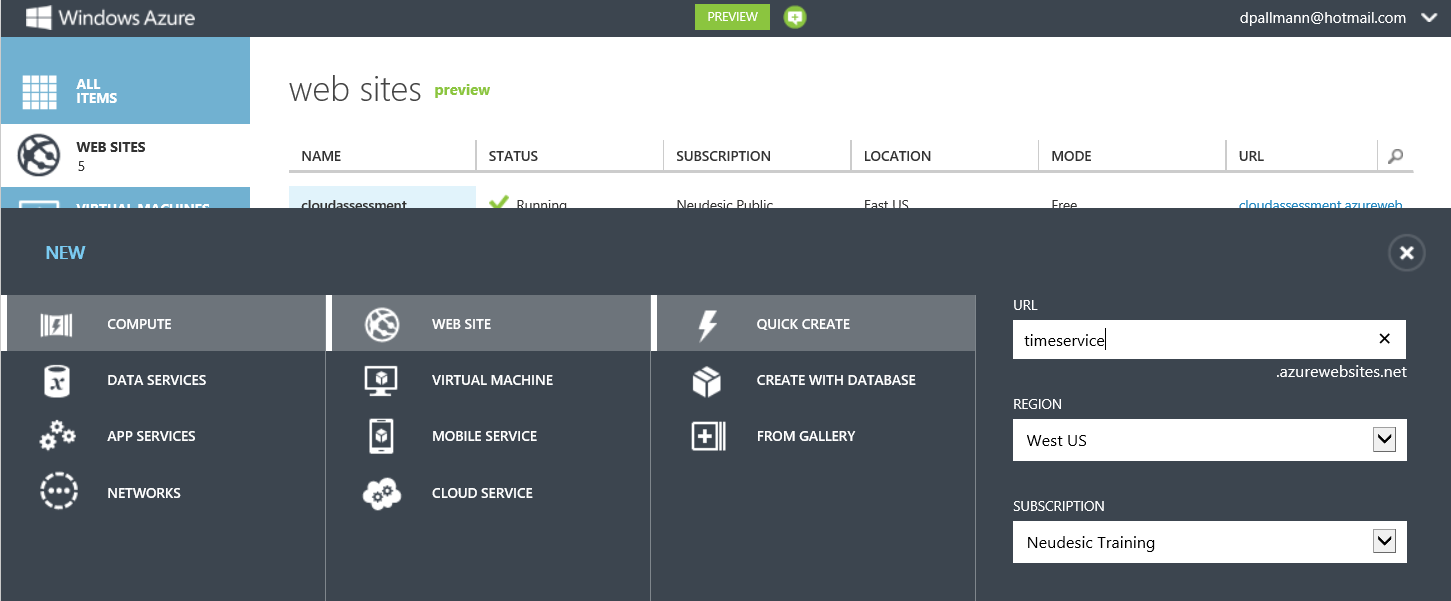
Very good - but remember, our service is still running locally. We need to put it up into the cloud. With Windows Azure Web Sites this is a fast and simple process that takes less than a minute.

Create a Windows Azure Web Site to Host Web Service in the Cloud

After creating the web site, we can download a publishing profile and deploy right from Visual Studio using Web Deploy. The last thing we need to do is change the URL the client code is using, which is now of the form http://timeservice.azurewebsites.net/api/values/timezone.


4. Using Windows Azure Mobile Services
We just showed you how you can create your own back-end in the cloud for your Windows 8 app, but maybe you don't really want to learn all those cloud details and would really like to stay focused on your app. Microsoft has a new service that will automatically create a back-end in the cloud for your Windows 8 app (and eventually, for other mobile platforms as well).

Because I've recently blogged on Windows Azure Mobile Services, I'll direct you that post rather than repeating it here. However, I do want to point out to you here and now how valuable this service is. It's really a mobility back-end in a box that you can set up and configure effortlessly. Among other things, it gives you support for the following:

• Relational Database (including auto-creation of new columns when you alter your app's data model)
• Identity
• Push Notifications
• Server-side scripting (in JavaScript)

Window Azure Mobile Services is definitely worth checking out. It has a great experience and is very easy to get started with.

This talk was recently given at a code camp, and you can find the presentation here.http://davidpallmann.blogspot.com/2012/10/presentation-windows-8-and-cloud.html

Presentation: Windows 8 and the Cloud

At SoCal Code Camp I recently gave a session on Windows 8 and the Cloud. My presentation is now available on SlideShare.


I've also blogged directly on the subject here.

Friday, June 22, 2012

SoCal Code Camp Talks on Gamification, and Easy Windows Azure Migration

This weekend I'll be at SoCal Code Camp in San Diego. I'm giving two presentations on Sunday 6/24. Hope to see you there!

Make Your Boring Business Software Compelling with Gamification (6/24/12, 10:15a, Rm 107)

Gamification is the practice of adding fun, competitive, and social elements to software applications. It makes the experience more compelling which leads to increased user loyalty and higher productivity.

In this session, we'll look at several different kinds of gamification including badges, points, achievements, rewards, contests, leaderboards, auctions, entertaining UI, and "games" that actually solve real-world problems.

We'll see examples of gamification in action in HTML5 web/mobile applications running on the Microsoft web/cloud platform.


Ridiculously Fast & Easy Migration to the Cloud with Windows Azure (6/24/12, 3:00p, Rm 126)

Some applications are easier than others to migrate to the cloud. In this session, Windows Azure MVP David Pallmann will show you the low-hanging fruit: recipies for application and data migration that are ridiculously fast and easy with a high ROI. We'll perform a number of actual migrations live in the session. If you're looking for no-brainer use of the cloud that doesn't involve a lot of rocket science, this session is for you.

Sunday, June 17, 2012

Azure Storage Explorer 5 Preview 1 Now Available with Logging & Monitoring Support

Preview 1 of Azure Storage Explorer 5 is now available on CodePlex. This preview reveals the new look of version 5 and contains some new functionality, with more to come in successive updates. Today we'll review the new logging and monitoring support which is included in Preview 1.


If you're not familiar with Azure Storage Explorer, it's a community donation from Neudesic that lets you view and manage Windows Azure storage data. As far as I know, Azure Storage Explorer was the first such tool for Windows Azure: I wrote the first version in January 2009, and we've gone all the way up to version 4 which has been out for about a year and a half now. It's high time we came out with another version, especially given the major update to the platform that took place earlier this month.

Azure Storage Explorer isn't the most sophisticated tool in it's class--there are some good robust commercial offerings such as Cloud Storage Studio from Cerebrata, part of Red Gate Software. However, it does an adequate job for most users and it is free, which makes it useful in classroom settings. We also include the source code which makes it a useful example of a storage application for learning. There have been over 50,000 downloads to date.


Goals for Version 5

For version 5, we wanted to first of all match the look of the new HTML-based Windows Azure portal. Secondly, we wanted to support some the new features in Windows Azure storage, including  the ability to configure and view both logging and monitoring. Third we wanted to resolve reported issues and adopt good suggestions that users have submitted on CodePlex. We've got some of that done in Preview 1 with more to follow.


Logging Support

Windows Azure Storage accounts can now be configured to track logging information. Azure Storage Explorer lets you can configure logging of reads, writes, and deletes for blobs, queues, and tables as you prefer, along with a retention policy for the data.


When you view your storage account blob containers, you'll notice a container named $logs if loggig is enabled for the account.


The blobs contain records showing storage access requests, in the form of textual data, separated by semicolons.


Monitoring Support

Windows Azure Storage accounts can also be configured to track metrics. Azure Storage Explorer lets you can configure the level of metrics for blobs, queues, and tables (off, minimal, or verbose) as you prefer, along with a retention policy for the data.


When you view your storage account tables, you'll notice four tables named $MetricsCapacityBlob, $MetricsTransactionsBlob, $MetricsTransactionsTable, $MetricsTransactionsQueue.


The amount of data in the tables depends on whether you've enabled minimal or verbose metrics collection.


New User Interface

Like the new Windows Azure portal, Azure Storage Explorer 5 has a look inspired by the styling of Windows 8 Metro apps. In Preview 1, we've made some of the more fundamental changes including fonts, layout, and colors in the main window---but there's more work to be done, including reworking dialogs and how we show the item detail view of blobs, messages, and entities.


I hope you enjoy this first preview of Azure Storage Explorer 5: and stay tuned for more.